




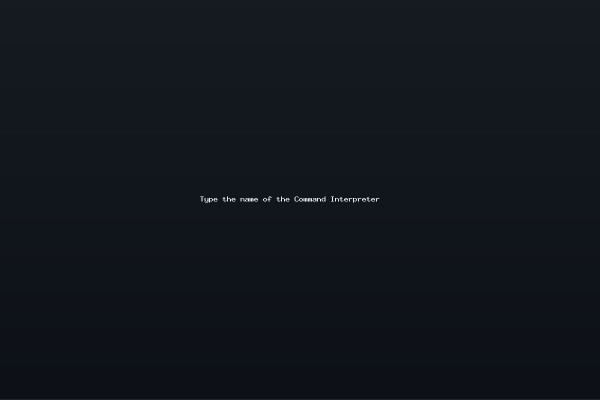
Understanding the “Type the name of the Command Interpreter” Message
When a Windows computer boots and displays the prompt “Type the name of the Command Interpreter,” the system is stuck before it can hand control over to the operating system. That line is not a modern Windows message; it belongs to the era of DOS‑based Windows releases such as Windows 3.1, 95, and 98. It tells you that the BIOS has located a bootable partition, but the required files to start DOS and then Windows cannot be found or loaded.
During boot, the BIOS reads the master boot record (MBR) of the active partition and loads the bootstrap loader. In the DOS world, that loader looks for a set of essential files: Command.com, IOS.sys, and MSDOS.sys. These three files provide the low‑level environment that Windows needs. Command.com is the command interpreter - the program that parses user commands and executes built‑in DOS functions. IOS.sys supplies the disk and I/O support, while MSDOS.sys contains the core DOS kernel data structures. If any of these files is missing, corrupted, or hidden behind an attribute that the loader cannot read, the bootstrap fails and the BIOS falls back to the prompt asking you to type the name of the command interpreter.
The message is often confused with a simple “cannot find Command.com” error, but it usually means something more fundamental: the boot sector itself is intact, but the files it points to are either damaged or have been inadvertently deleted. In a Windows 95/98 machine, the boot sector contains a small piece of code that instructs the BIOS to load the first sector of Command.com. Once that sector is read, the operating system continues. If Command.com cannot be loaded, the BIOS displays the prompt. The prompt also indicates that the machine has successfully found a bootable partition and that the problem is strictly within the file system or the file itself, not the hardware.
Common causes of this issue include a corrupted File Allocation Table (FAT), accidental deletion of the boot files, or attribute changes that hide them from the loader. A damaged FAT can make the OS believe the files are missing even when they physically exist. Deleting Command.com or changing its attributes to hidden, system, or read‑only can also trigger the prompt, because the bootstrap loader ignores files with those flags. Understanding these fundamentals helps you target the right part of the recovery process rather than trying generic fixes.
The next step is to take a systematic approach: verify the integrity of the FAT, restore any missing boot files from a known good source, and repair the MBR if necessary. The following sections walk you through each of those actions in detail, using tools that were available on the original Windows installations.
Repairing the Boot Error Step by Step
Before you start, make sure you have a bootable Windows 95/98 startup disk or a CD that contains the standard DOS tools. If you don’t have a floppy drive, you can create a bootable CD or USB stick using a utility that copies the original system files. Place the disk in drive A or the appropriate boot drive, power on the machine, and watch the BIOS search for a bootable partition. If it finds one, the prompt will appear, and you can begin the recovery.
At the prompt, type A:\Command.com and press Enter. This will load the DOS command interpreter directly from the floppy. You should see a DOS prompt, typically A:>. If you do not see a prompt, verify that the disk is inserted correctly and that the drive letter matches the physical drive. Once you have a working DOS prompt, you can run the built‑in disk utility to check the hard drive for errors. Type Scandisk.exe and press Enter. Scandisk will scan the C drive for bad sectors, cross‑references, and file system inconsistencies. Let it finish and follow any on‑screen instructions to repair the file system. This step fixes corrupted FAT entries that could be hiding the boot files.
After Scandisk completes, copy the boot files back onto the hard drive. Use the following commands at the DOS prompt on the floppy:
Attrib -H -S -R A:\IOS.sys
This removes the hidden, system, and read‑only attributes that might prevent the bootstrap loader from accessing IOS.sys. Next, copy the files:
Copy A:\Command.com C:\Command.comCopy A:\IOS.sys C:\IOS.sys
Do not copy MSDOS.sys from the floppy; the original system already has a valid version, and replacing it can cause other problems. Once the copies are in place, close the floppy disk and reboot the computer. The BIOS should now find the required files in the C drive, load Command.com, and proceed to Windows.
If the prompt reappears after the reboot, the MBR itself may be damaged or corrupted. In that case, use the DOS prompt on the floppy to run the Fdisk utility with the /mbr option:
Fdisk /mbr
This writes a fresh master boot record to the disk, which restores the boot sector’s ability to load the Windows boot loader. The command finishes almost instantly, with no output. Reboot again; the system should now start normally.
In rare cases where the error persists, double‑check the boot priority in the BIOS to ensure the correct drive is active, and verify that the partition is still marked as active. If the disk is physically damaged, consider backing up any recoverable data and replacing the drive. For users with a modern Windows machine, you can also use a Windows 7/10 installation disk to run the bootrec /fixmbr and bootrec /fixboot commands, but those tools are designed for NT‑based systems and will not help a DOS‑based Windows.
Once the machine boots without the “Type the name of the Command Interpreter” prompt, you will have restored the original DOS boot files, repaired the FAT, and fixed the MBR if necessary. You can then resume normal use of Windows 95/98, or, if you prefer, upgrade to a newer version of Windows that is not based on DOS.
For more detailed information about Windows repair tools and registry tweaks, check out the free resources and utilities offered by
Tags








No comments yet. Be the first to comment!